Installing Salience
Salience runs as a standalone app or a VST3 plugin, on Mac and Windows. Here's the whole path: what you need, downloading, installing, unlocking it, setting up sound generation, and making your first sound.
What you need
| Mac | Windows | |
|---|---|---|
| OS | macOS 14 (Sonoma) or later | 64-bit Windows 10 or 11 |
| Chip | Apple Silicon or Intel | Any 64-bit CPU |
| Best sound quality | Apple Silicon, for the Quality generation mode | An NVIDIA GPU with 4 GB of video memory or more, for the Quality mode |
| Download | About 7 GB | About 17 GB |
Everyone can generate sound in Fast mode. Quality mode (richer, cleaner, slower) needs the hardware above. If your machine can't run it, Salience tells you and you stick with Fast.
Download Salience
Get the installer from your purchase email, the download page, or latentsea.io.
Install it
Open the file you downloaded and follow the prompts.
Mac: Salience installs into your home Applications folder (~/Applications). Open it from there.
Windows: the installer puts Salience in C:\Program Files\Salience and adds a Start menu shortcut. You'll see "Windows protected your PC". That's expected, not a problem. Salience uses a signing identity Windows hasn't built up trust in yet.
- Click More info.
- Click Run anyway.
- Continue the installer.
If Run anyway isn't there, or you hit a different block, email hello@latentsea.io.
Open Salience and unlock it
The first time you open Salience, it asks for your license key. It looks like SAL-XXXX-XXXX-XXXX. Type or paste it in and click Activate. You'll see "Activating..." for a moment, then Salience opens.
If you activated this key somewhere else already, Salience will just say so: "This key isn't active on this computer yet. Drop it in to activate." Your key works on up to 3 computers at once. If you're already using all 3, click Manage machines to see them and free one up.
Got an offline license file instead of a key? Use Paste or drop offline license on the same screen.
Lost your key? Click Lost your key? right there, or go to latentsea.io/lost-key. Still stuck, email hello@latentsea.io from the address you bought Salience with.
Set up sound generation
The first time you click Generate, Salience walks you through a short one-time setup:
- Click View terms, read them, tick the box, and click Accept terms.
- Pick a folder for the sound engine. Salience checks you've got enough room, and if not, pick another drive or free some up.
- Click Install. Salience downloads the sound engine: about 3.5 GB on an Apple Silicon Mac or most Windows PCs.
- If your connection drops mid-download, you can pick up where you left off. No need to start over.
- When it's done, click Start generating.
Your Boards, pads, and Library are untouched by any of this. It only adds the local sound engine and model files.
On an Intel Mac, the download is bigger: about 4.7 GB, because it carries its own self-contained runtime built for your chip. Generation runs on your CPU rather than the GPU, and it's built to be quick that way. Real Intel Macs get a take back in well under a minute.
Use it as a plugin in your DAW
Salience ships as a VST3 plugin.
Mac: Salience installs to ~/Library/Audio/Plug-Ins/VST3/Salience.vst3.
Windows: Salience installs to C:\Program Files\Common Files\VST3\Salience.vst3\.
If it doesn't show up in your DAW, rescan your plugins.
Insert Salience on a track like any other instrument. If it asks you to activate or finish sound-generation setup, that's the same process as above. You only do it once per computer, standalone or plugin.
After you update Salience: on Mac, quit your DAW, open Salience Standalone once to let the update finish, then reopen your DAW. On Windows, just fully quit and reopen your DAW.
Make your first sound
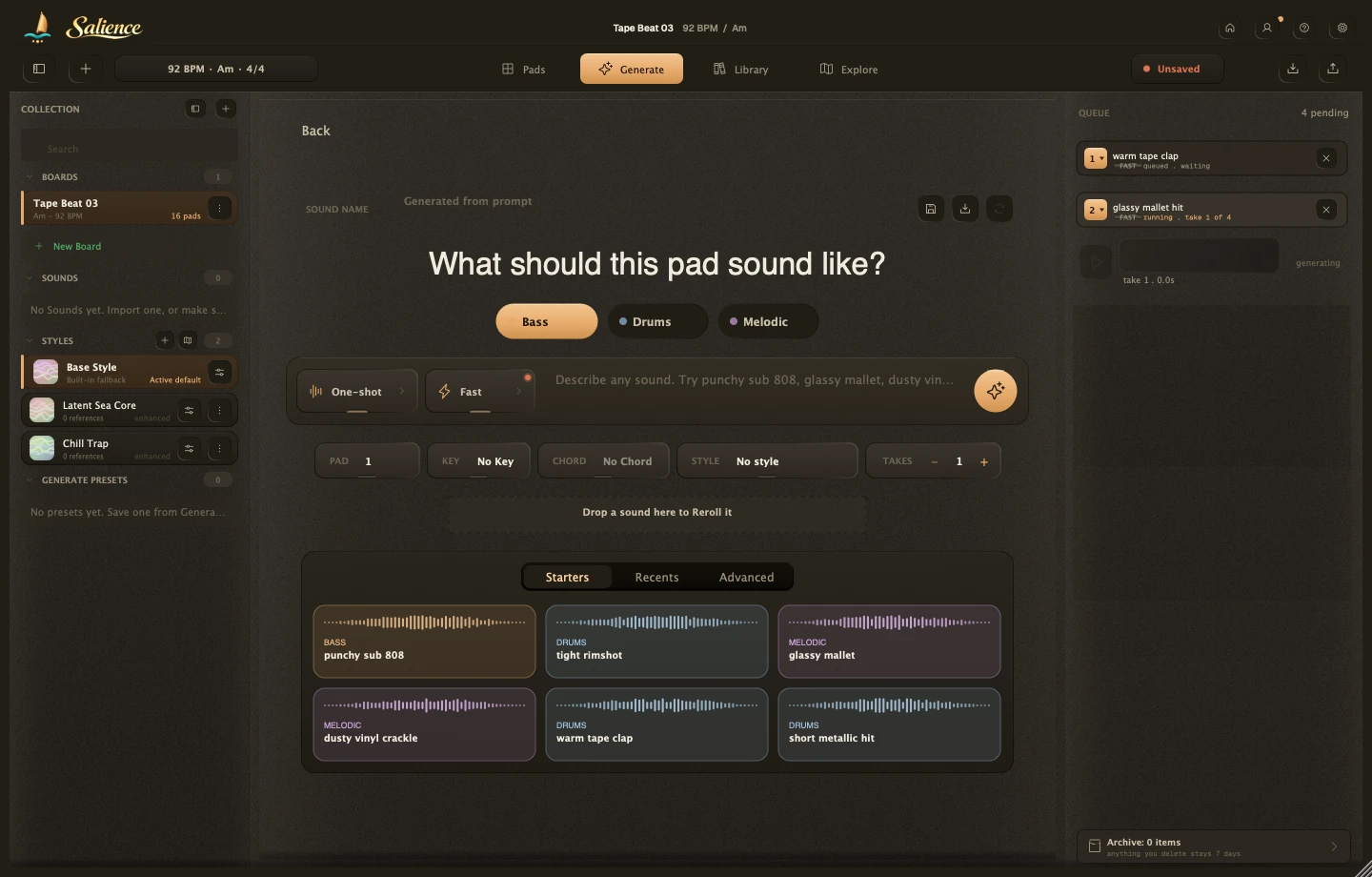
Select a pad and click Generate. Type what you want to hear, something like "punchy sub 808" or "dusty vinyl crackle", and send it. Your takes show up on the right as they generate; click Play on one to preview it, and Keep on your favorite to land it on the pad. Switch to Play and trigger the pad from your keyboard or your DAW.
That's it. You're making sounds.