Make a sound
The path from an empty pad to a sound you can play and keep.
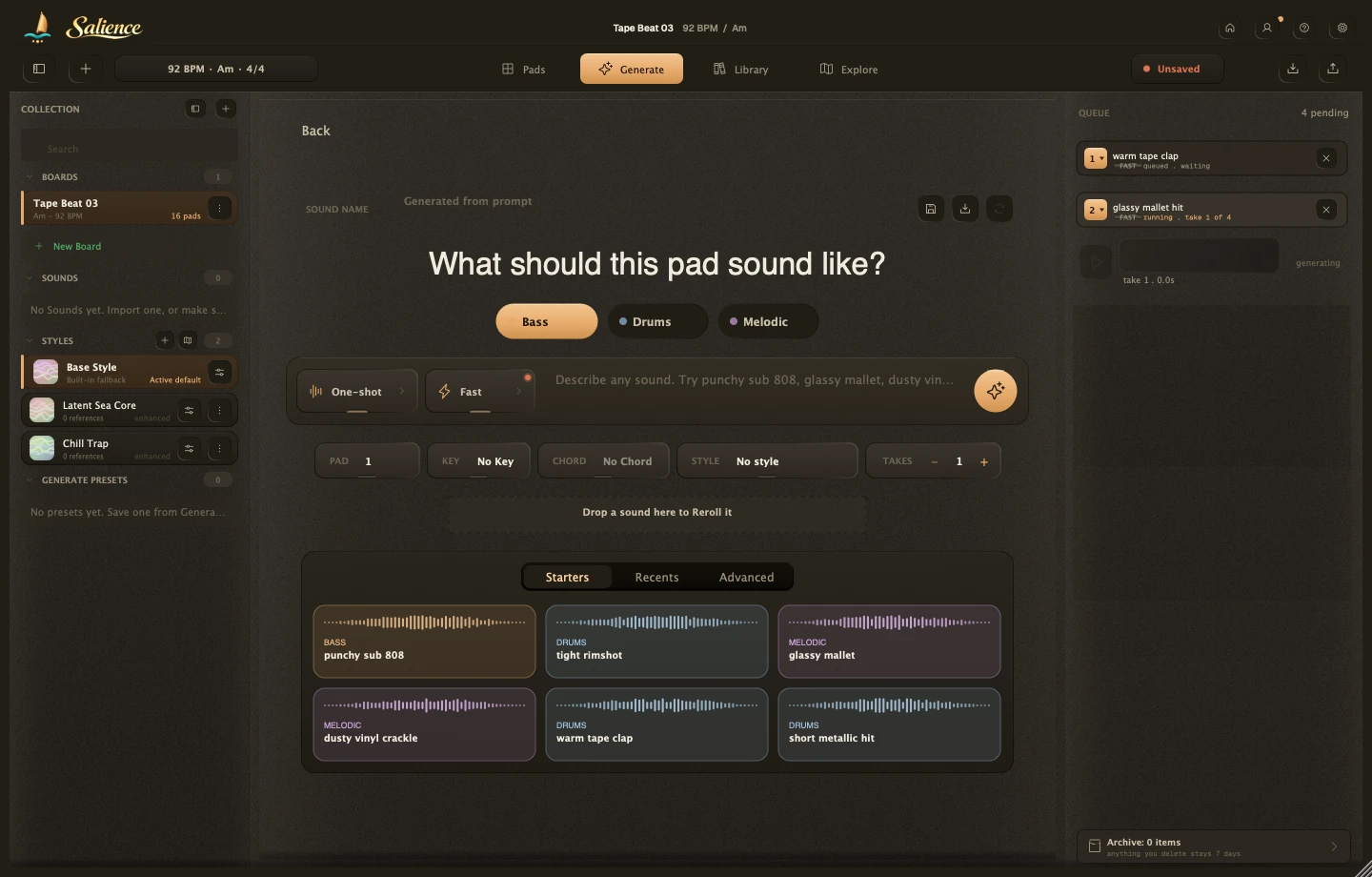
1. Open Generate
Click Generate in the top bar, or Generate a sound on an empty pad. You land on "What should this pad sound like?"
2. Describe the sound
Pick a starting point (Bass, Drums, Melodic) or type a prompt. See Prompting guide for how to write a good one.
Also set: which pad, key and chord, how many takes (1 to 4), a name, a Style (or No style), Output as One-shot or Loop, and Fast or Quality.
The chips under the composer fill the field in for you. They don't start generating on their own.
3. Start generating
Click send. Takes show up in the Queue as they generate.
4. Preview, then keep
Click Play on a ready take. Click Keep on your favorite: it lands on the pad, the rest clear out. A failed generation is reported and nothing is removed from your Board. Keeping a take saves it as part of your Board right away, see Boards and pads. Want more control over how it sounds? Head to Filter and voice controls.
5. Play it back
Switch to Play, select the pad, click Play, or trigger it from your keyboard if Keyboard pads is on.